In order to keep your Fenwick Apps Subscriptions details up-to-date, we require that your subscriptions are:
- Matching the required number of licences in your system.
- Periodically refreshed from our licensing server.
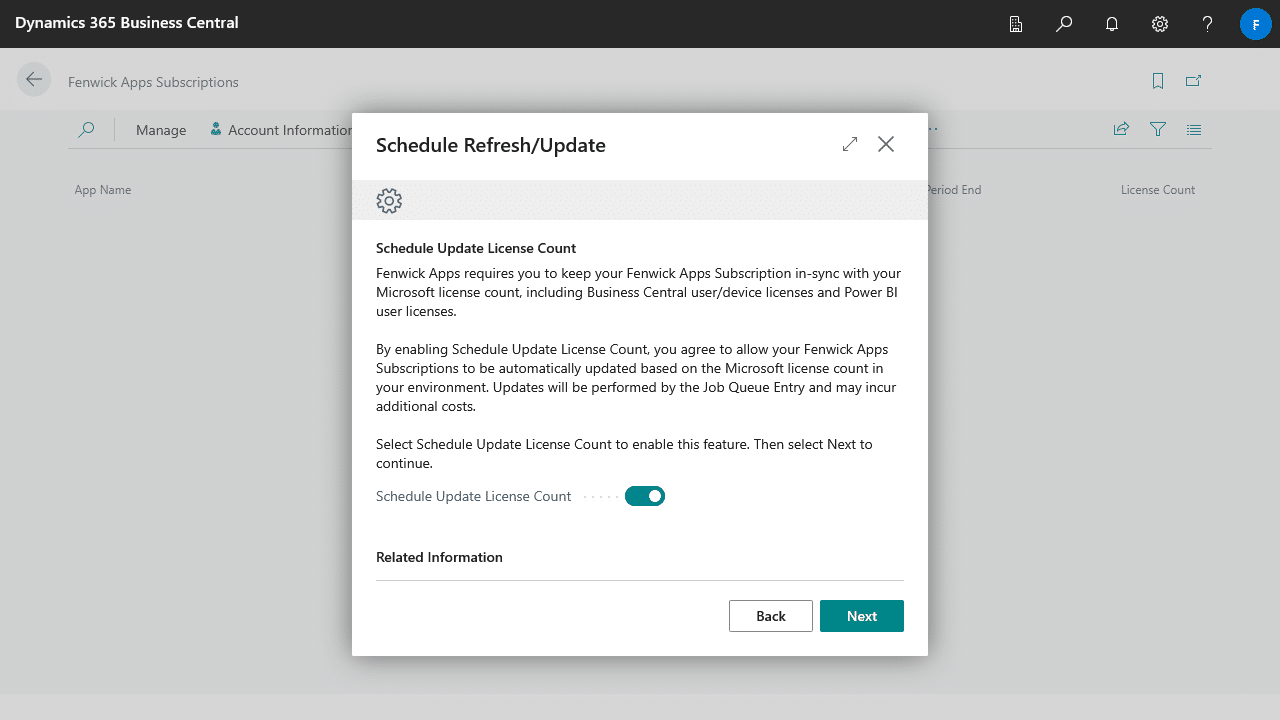
Because of this, we recommend you schedule your subscriptions to be updated automatically in the background. This will help avoid user interruptions during business hours, and improves performance throughout your system.
Scheduling automatic subscription updates
- Navigate to the Fenwick Apps Subscriptions page, and select Schedule Refresh/Update.
- Follow the instructions on the setup wizard to complete the setup. We recommend you enable Schedule Update License Count during this setup.
Updating your subscriptions when encountering a licensing error
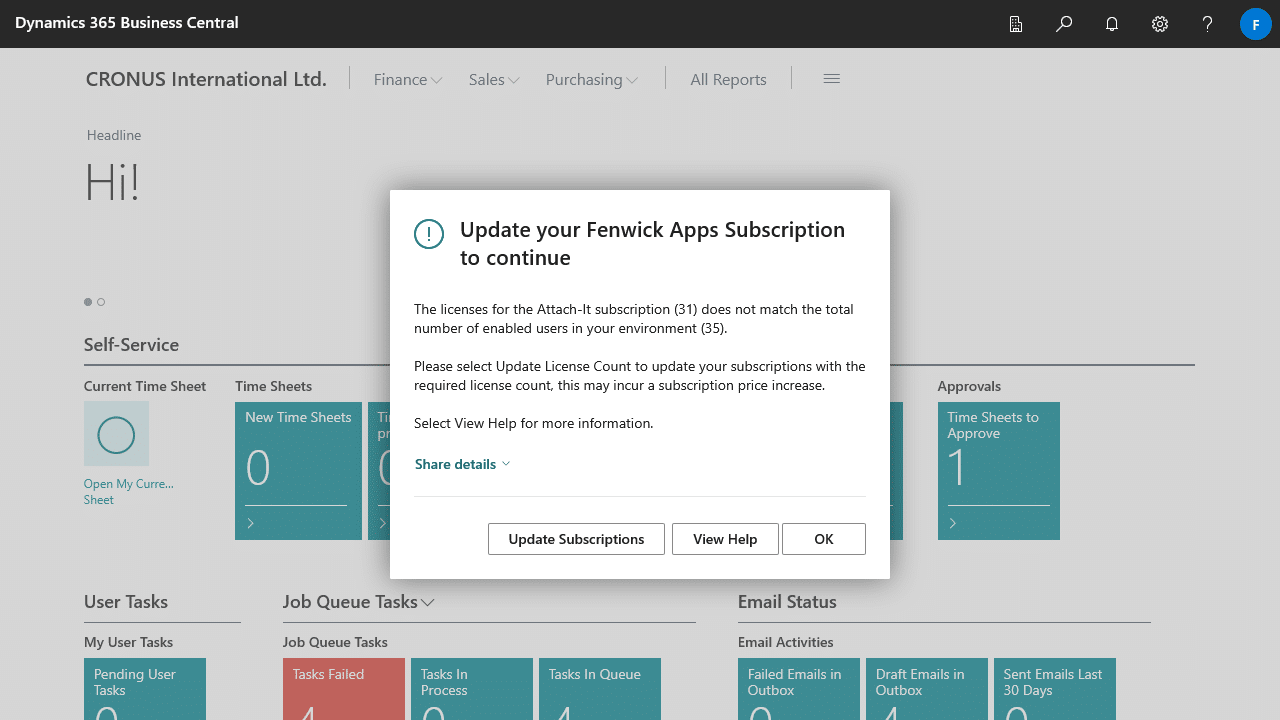
Please Note: The licenses for the subscription does not match the total number of enabled users in your environment
If you encounter the above error in Business Central, you’ll need to update your subscriptions to continue using Fenwick Apps.
You have two options:
- Select Update Subscriptions to Automatically update the subscription.
- Select OK and Manually update the subscription.
Automatically update the subscription
This option will update the subscription license to the required number of licences in your system.
For example, if you add a new user to your system, it will automatically add one user the subscription so that they’re correctly licensed.
Manually update the subscription
This option will require you to update the subscription manually on the Fenwick Apps Subscriptions page.
- Navigate to the Fenwick Apps Subscriptions page.
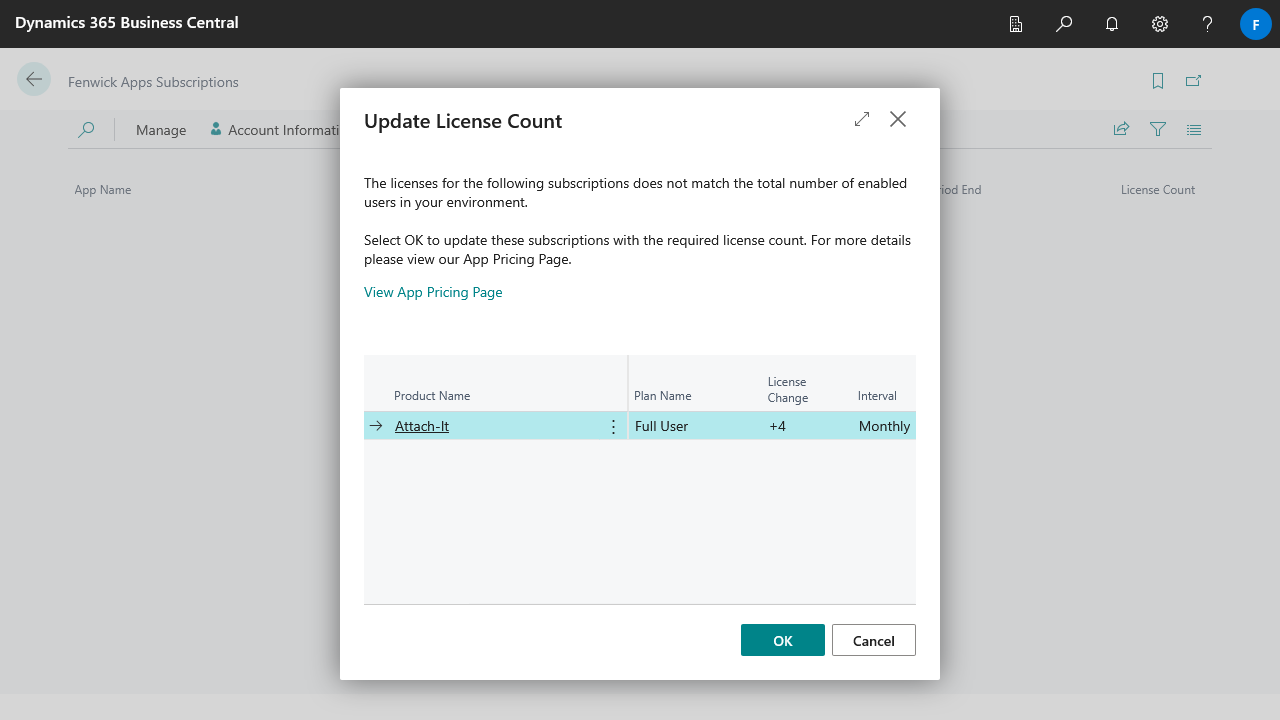
- Select Update License Count.
- Review the changes and select OK.
Understanding the minimum number of required licences
The number of licenses you need is based on the number of users that have access to your system. Some Fenwick Apps do have different licensing terms (i.e. consumption) noted in the subscription wizard and card.
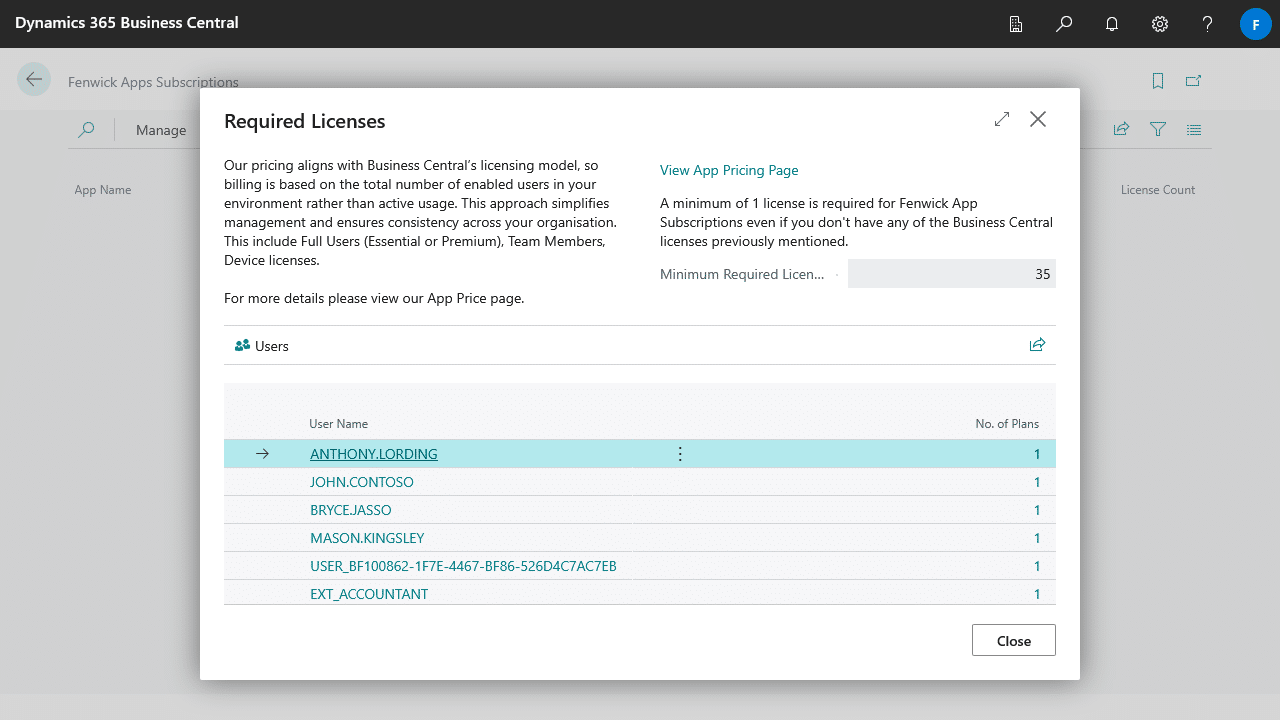
You can view the number of required licences by drilling through on the License Count flow field.
- Navigate to the Fenwick Apps Subscriptions page.
- Drill-down on the License Count number for the desired subscription.
- On the Required Licenses page, you can see the number of licenses required for this app. A breakdown of the usernames and their associated system plans determines the Minimum Required Licences.
Reducing the number of users
To reduce the number of required users for a subscription after, for example, disabling an user in your tenant:
- Navigate to the Fenwick Apps Subscriptions page.
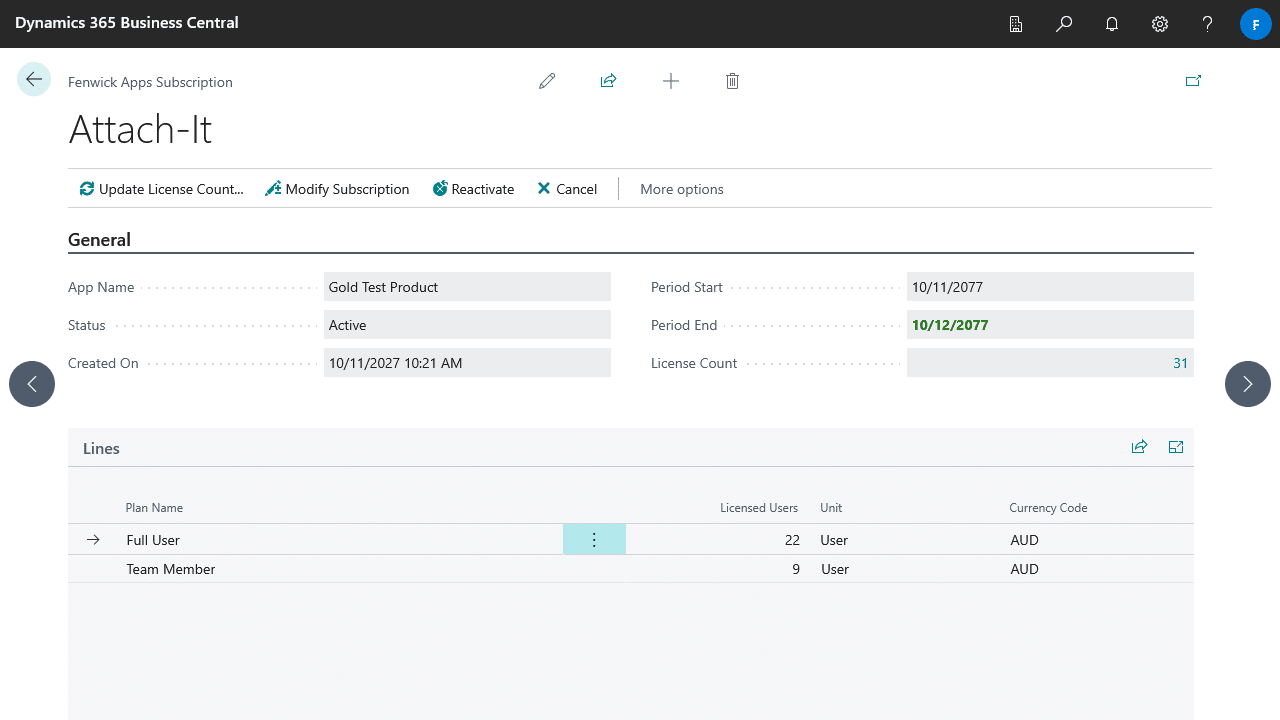
- Select the App Name of the desired subscription, this will open the card page for the subscription.
- Select Modify Subscription and follow the wizard. The number of licenses will be updated to match the required license count for the subscription.
Viewing past changes in the subscription update log
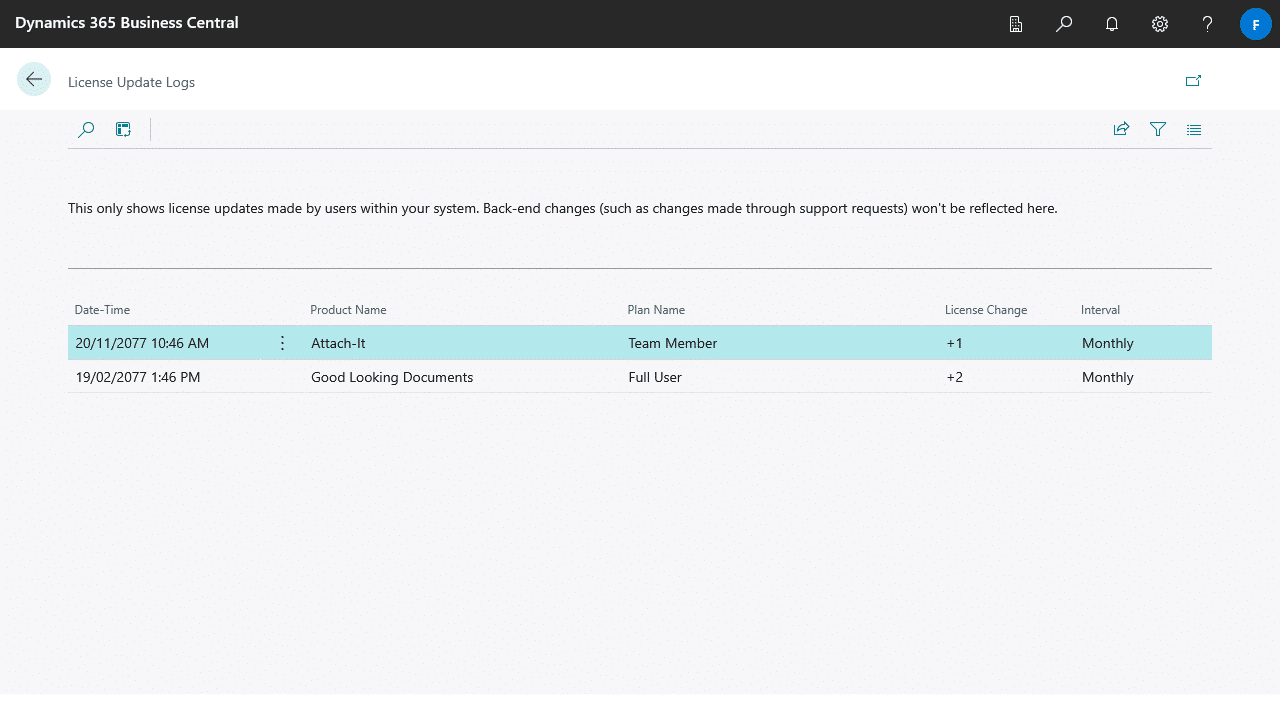
The Subscription Update Log contains a record of previous adjustments made to the licences based on user count changes. This log is only stored locally however, so won’t show backend changes (i.e. changes via a support request).
- Navigate to the Fenwick Apps Subscriptions page
- Select License Update Logs under the Support group.