
Universal Inventory provides a live, consolidated view of inventory across configured Business Central companies, environments, and tenants, all from within the user’s current session. It does this by reading your inventory from one entity and then displaying that information in another entity. Thus, you’ll need to set up the app where the inventory will be read from, as well as where the inventory will be viewed from.
Setting up where inventory will be read from
In order for inventory data to be read for your environment, you will need to create and setup a Microsoft Entra Application. These steps are performed in the tenant and environment you want to read the inventory data from.
- Start by registering a Microsoft Entra application.
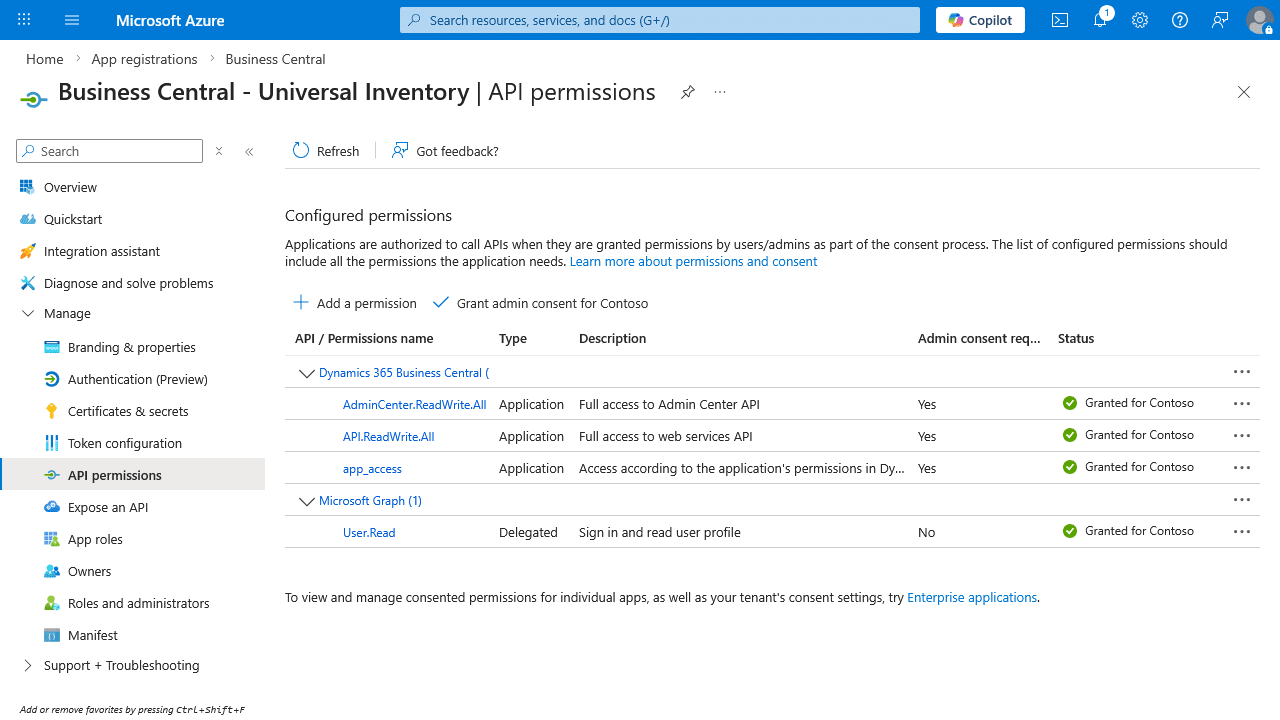
- Grant the application the following permissions:
AdminCenter.ReadWrite.All– this is used to help you setup the Universal Inventory app.API.ReadWrite.All– this is used to read the inventory data.app_access– this is used to read the inventory data.User.Read– this is used to authenticate access.
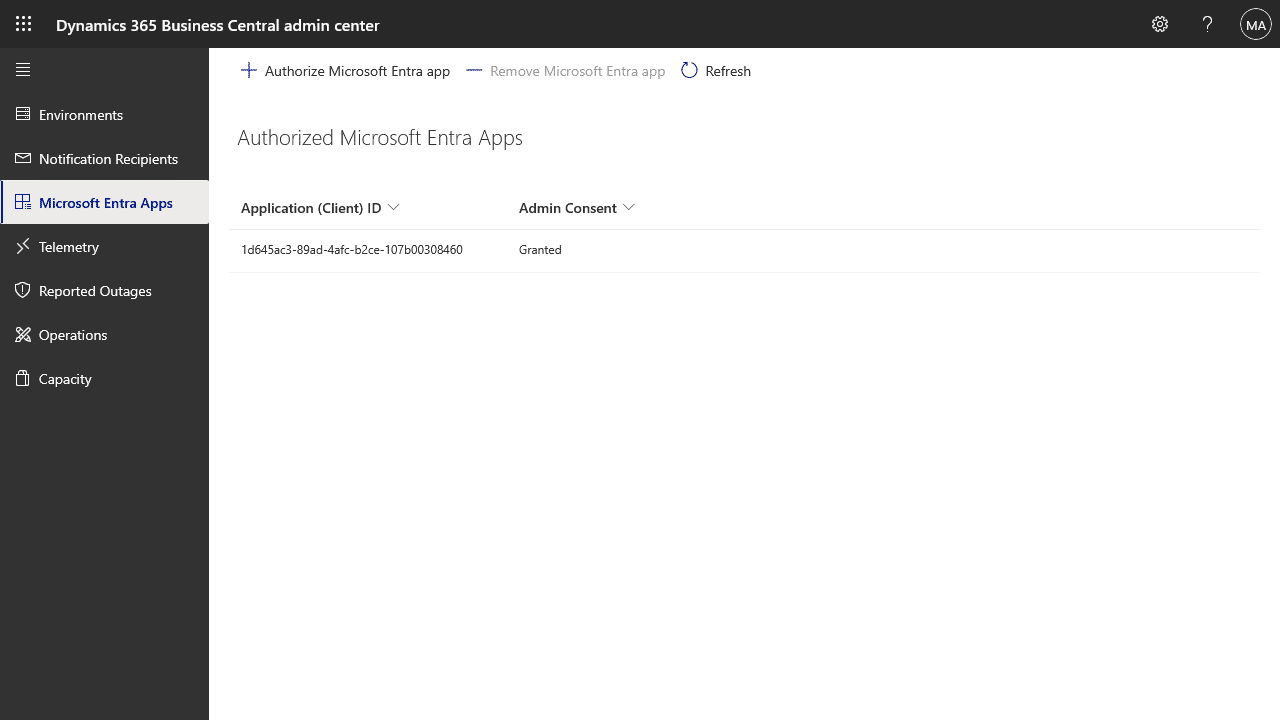
- Authorize the Microsoft Entra Application in Business Central Admin Center.
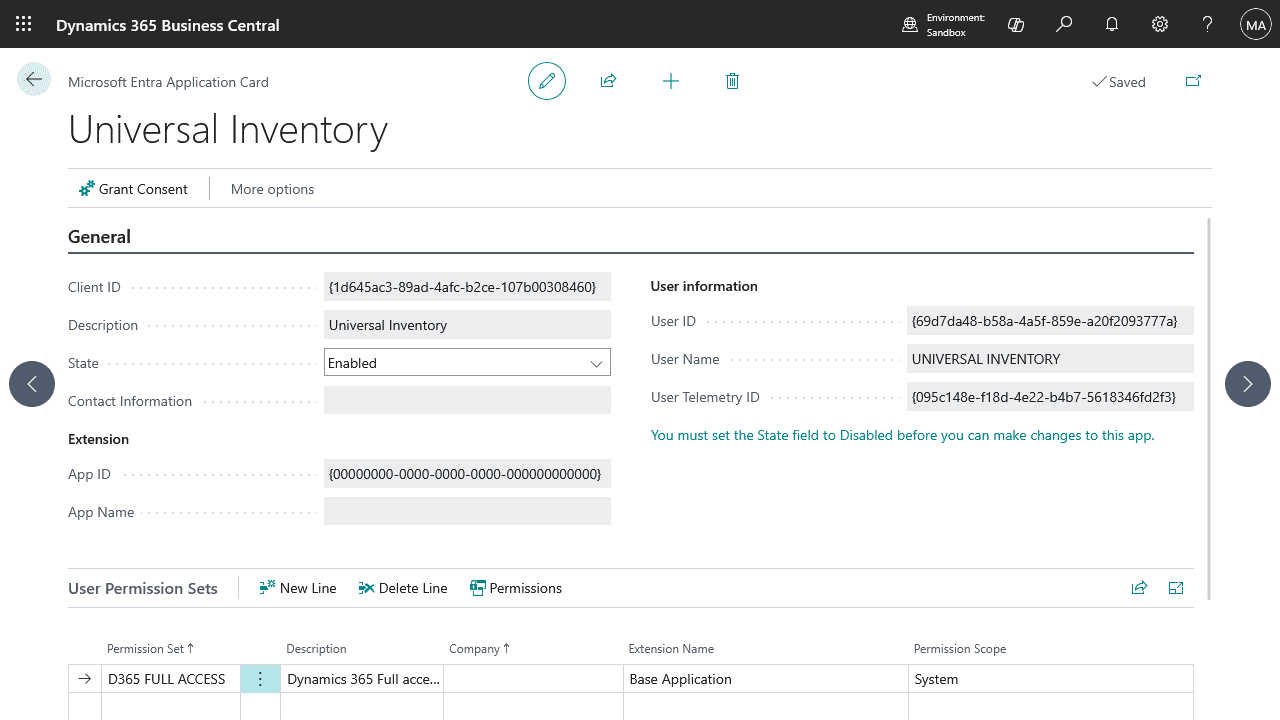
- Setup the Microsoft Entra application in Business Central.
- Install the Universal Inventory app in this environment.
Setting up where inventory will be viewed from
In order to display inventory data from other environments, you will need to setup the Universal Inventory app with the details from the previous step. These steps are performed in the tenant and environment you want to view the inventory data in.
- Install the Universal Inventory app in this environment.
- Navigate to the Universal Inventory Setup page.
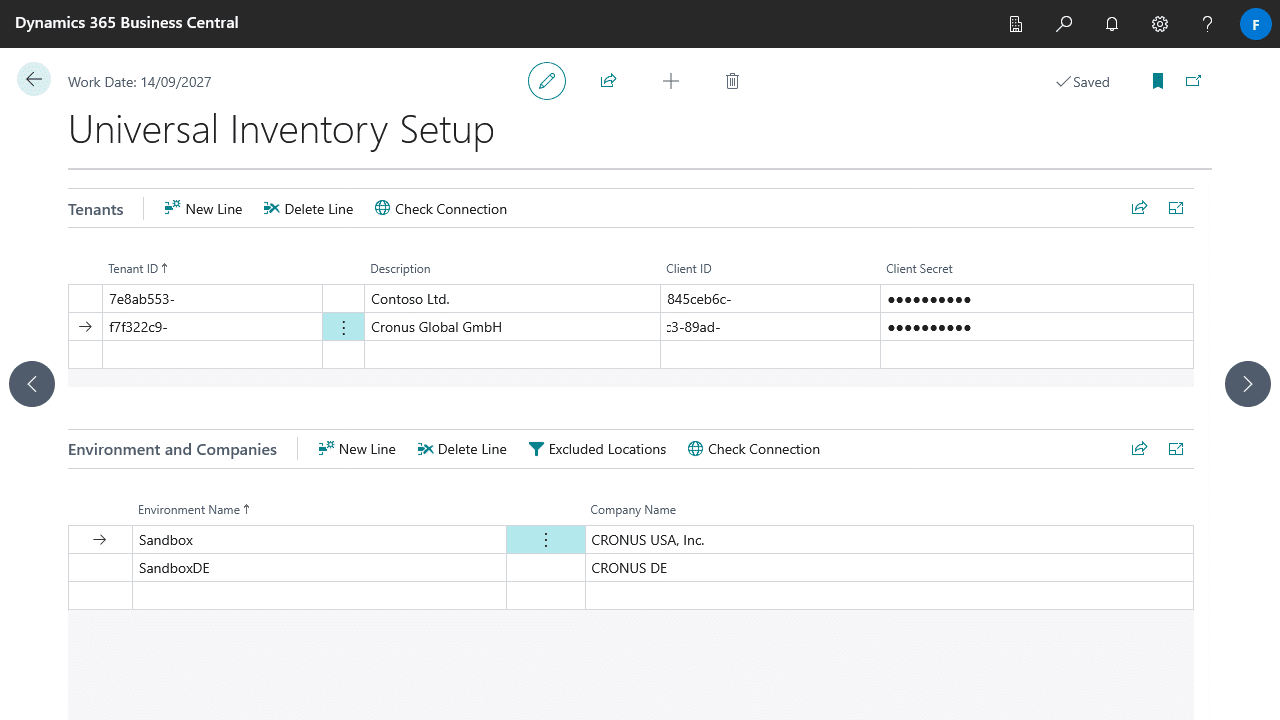
- On the Tenants FastTab create a new line and enter the following fields. These details come from the previous step where you setup your Microsoft Entra application.
- Tenant ID (Directory ID)
- Description
- Client ID (Application ID)
- Client Secret
- Select Check Connection to test the connection to the tenant.
- With the newly created Tenant selection in the Tenants FastTab, create a new line in the Environments and Companies FastTab and enter the following fields.
- Environment Name
- Company Name
- Select Check Connection to test the connection to the company.
Viewing the Inventory
You can view the inventory across your entities via the Universal Inventory FactBox on the following pages:
- Item List
- Item Card
- Sales Order
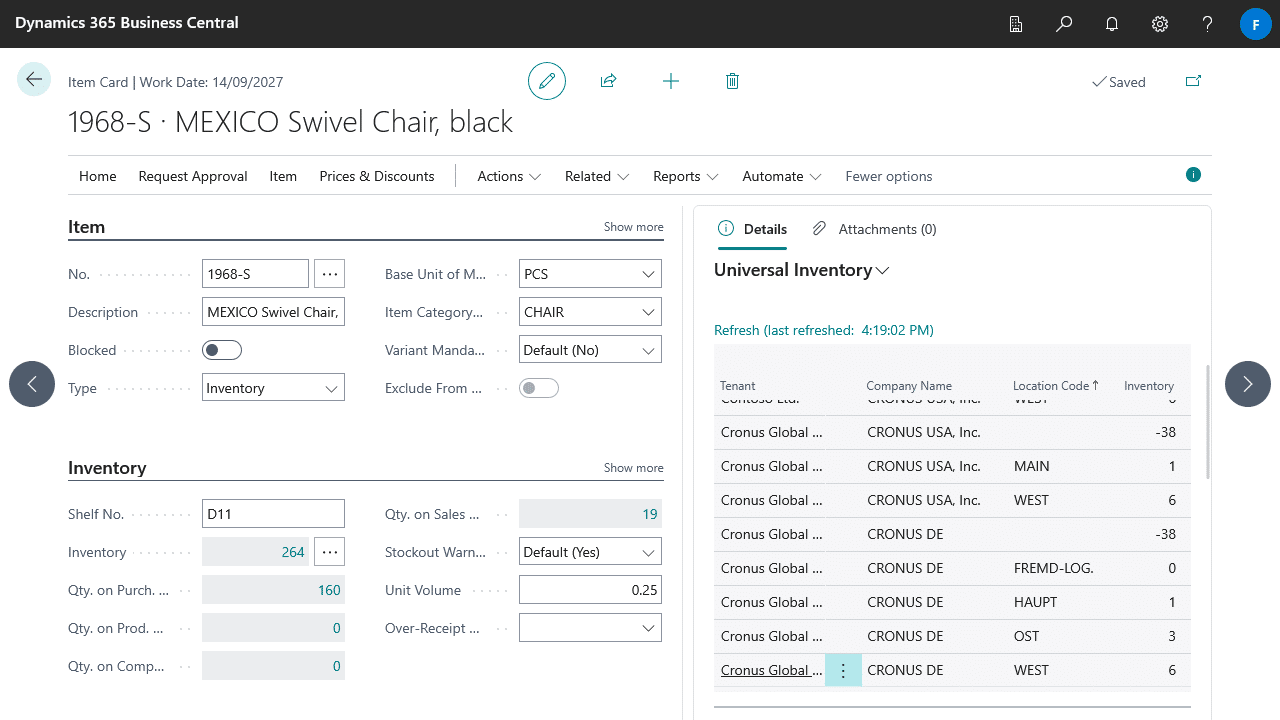
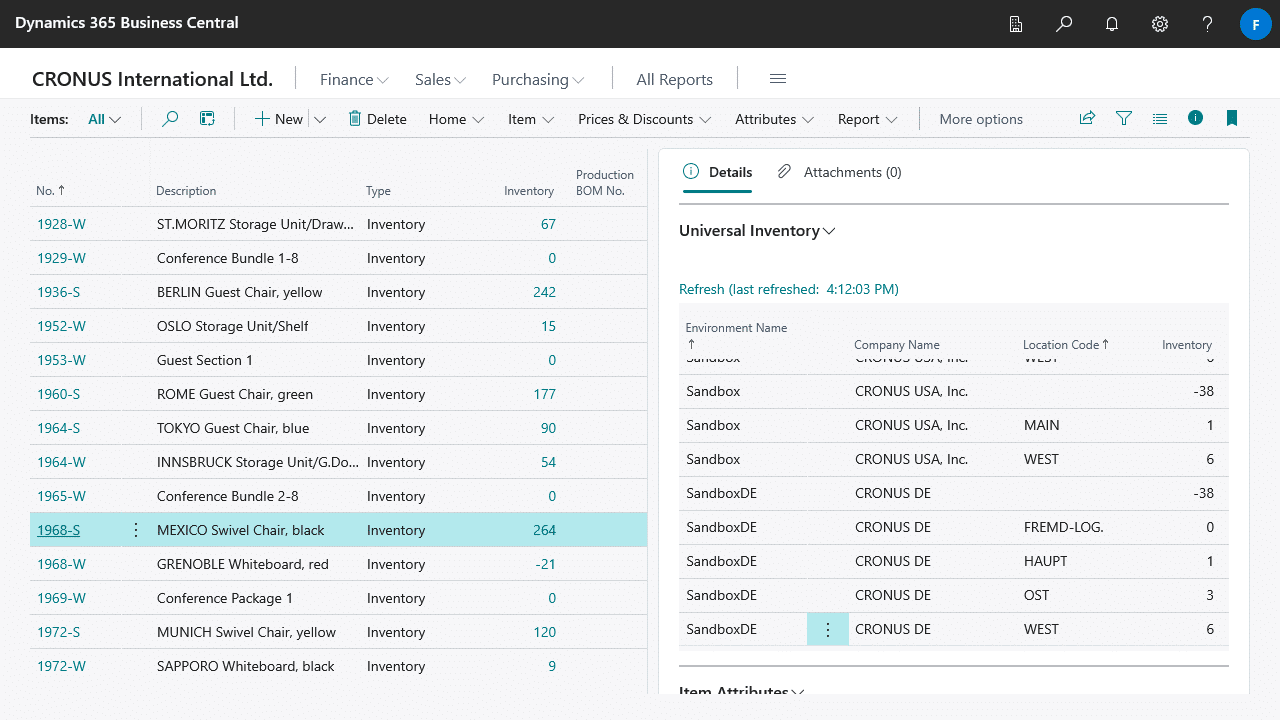
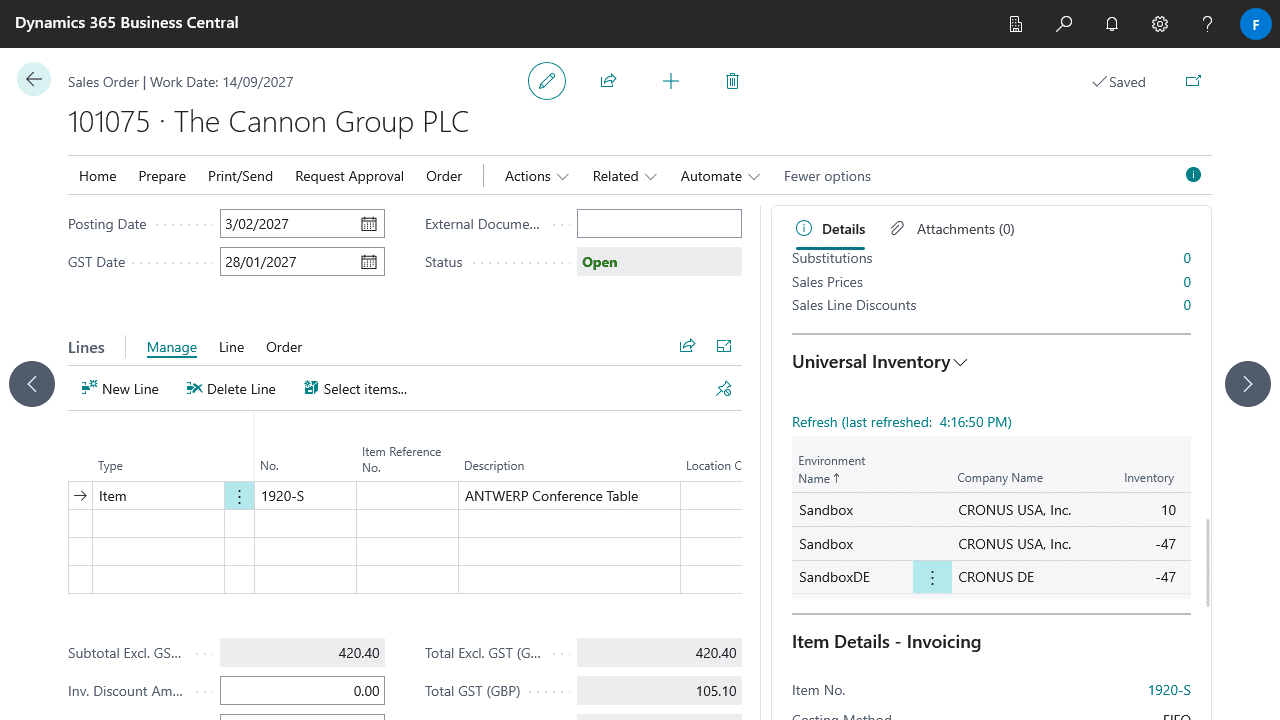
To ensure up-to-date information is displayed select Refresh.
From the Item List and Item Card you can also view the inventory via Universal Inventory page by selecting Item > Universal Inventory.