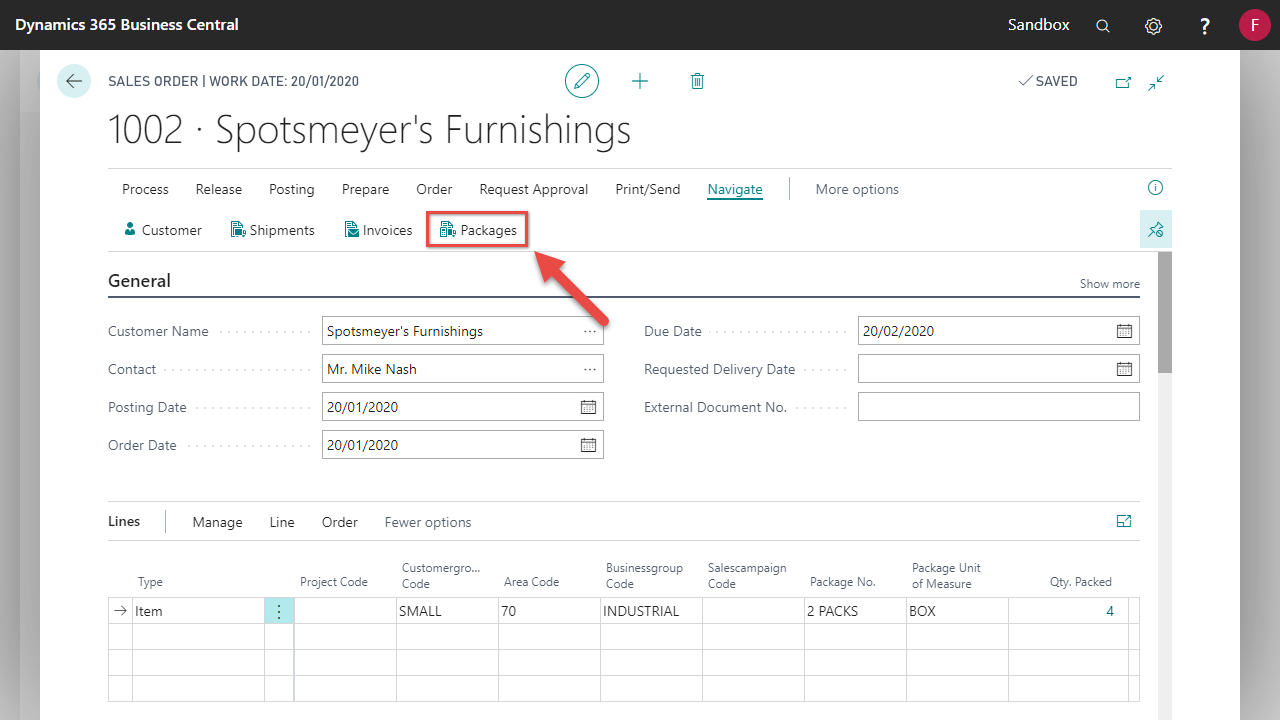
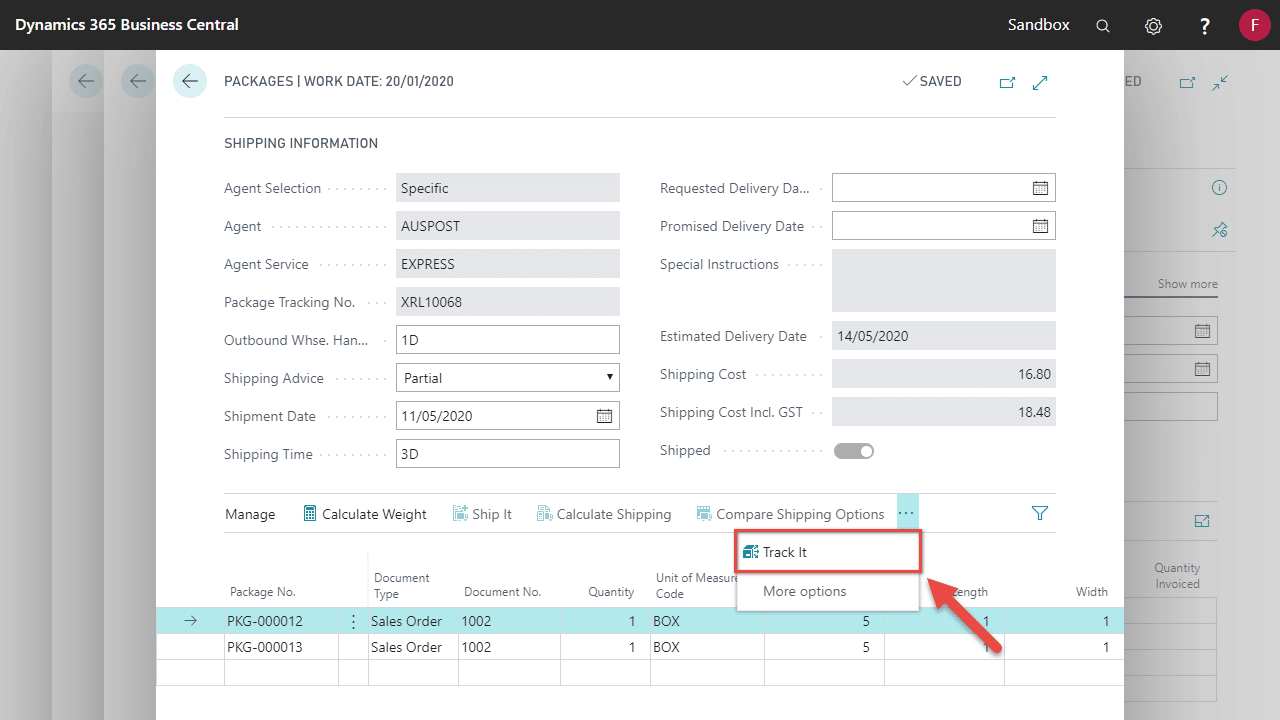
You can manage your SmartFreight shipments via Business Central. Track and cancel shipments using the following steps.
Tracking your shipment
Cancelling your Shipment
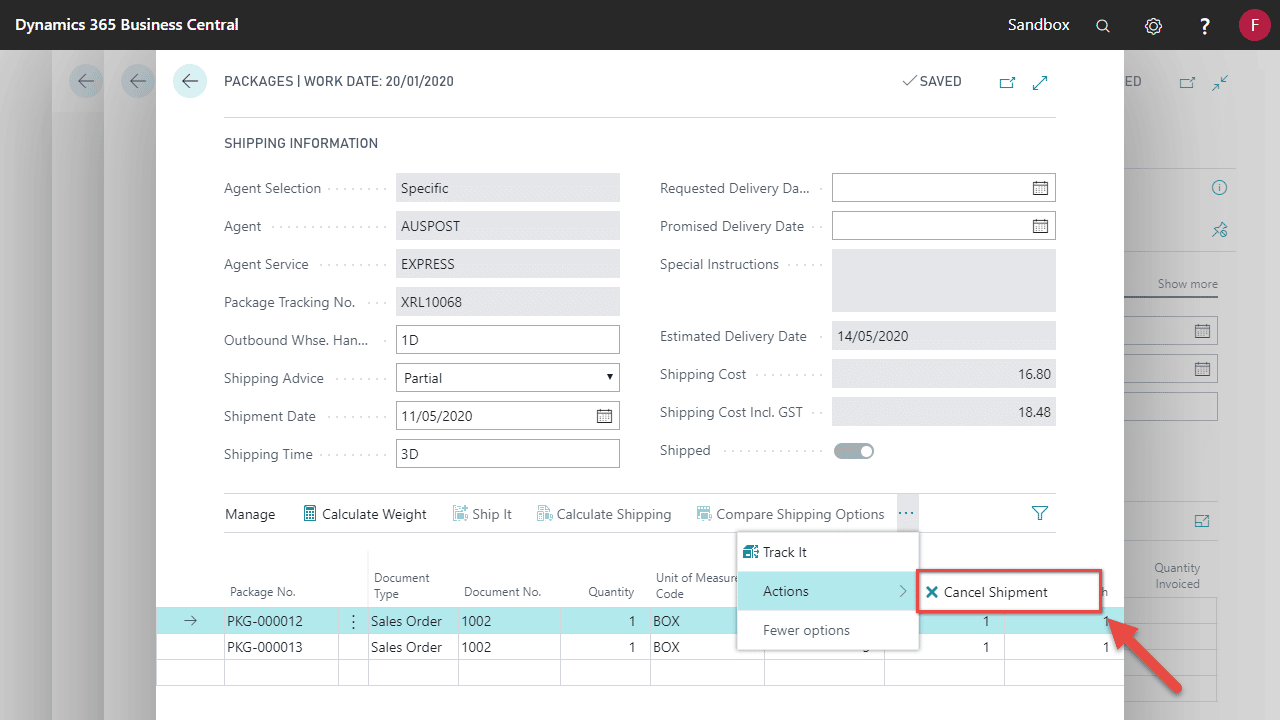
You can only cancel your shipment if the consignment has not yet been manifested.
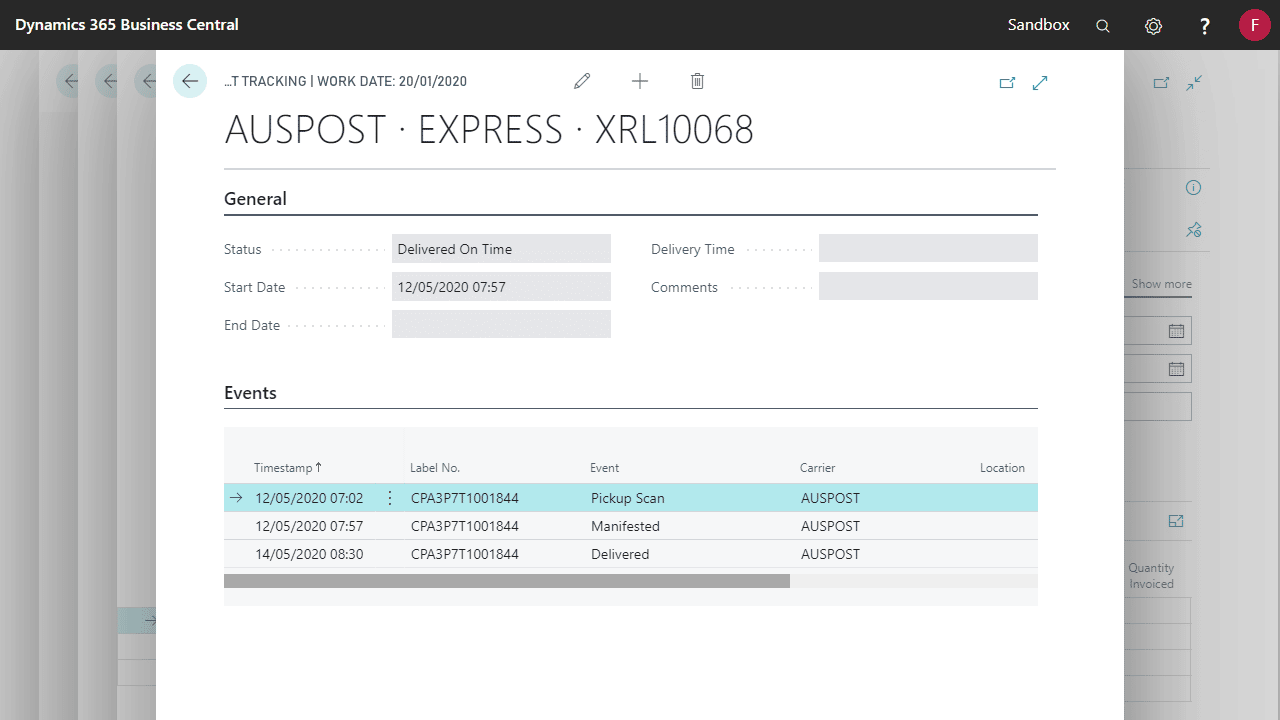
Once manifested you must contact the carrier to organise a cancellation. You can check whether the shipment has manifested by tracking the shipment, and look for the manifested event.
- Locate and open the Document you wish to track and select Package.
- Select Actions > Cancel Shipment.
How to Refresh Your Consignment Status
You can refresh consignment statuses from various pages, including:
- Consignment
- Inventory / Posted Inventory Pick
- Warehouse / Posted Warehouse Shipment
- Sales Order
- Sales Shipment
Setting the Refresh Date Range
Before refreshing, you may want to define how far back to include consignment statuses. This is based on the Status Last Updated field, which shows when the consignment last changed status.
To configure this:
- Go to the Deliver-It with SmartFreight Setup page.
- Locate the Refresh Date Range field.
- The default value is -1M (one month ago), but you can adjust it as needed.
Refreshing Consignment Statuses
- To refresh consignment statuses:
- Navigate to the relevant page (e.g., consignment card).
- Select Refresh Consignment Status from the action bar or the home action group.
- After refreshing:
- The Status Last Updated field will be updated to reflect the latest status change.
- A message will confirm how many consignments were refreshed.
Scheduling Automatic Refreshes
If no job queue is set up yet, you’ll see a notification bar at the top of the Deliver-It with SmartFreight Setup page prompting you to create one.
To schedule a refresh:
- Choose the Schedule a job queue entry from the notification bar.
- A wizard will appear, allowing you to:
- Set the Refresh Date Range
- Define how frequently the refresh should occur
Once scheduled, the Refresh Date Range field on the setup page will reflect the value you configured.