

Microsoft enhanced Dynamics 365 Business Central in Version 23 with standard barcode printing and mobile device scanning capabilities. These new features simplify data entry and boost accuracy, significantly enhancing operational efficiency. Organisations that don’t require a full Warehouse Management System can now take advantage of these built-in capabilities to streamline warehouse processes.
Setting up barcode printing in Business Central
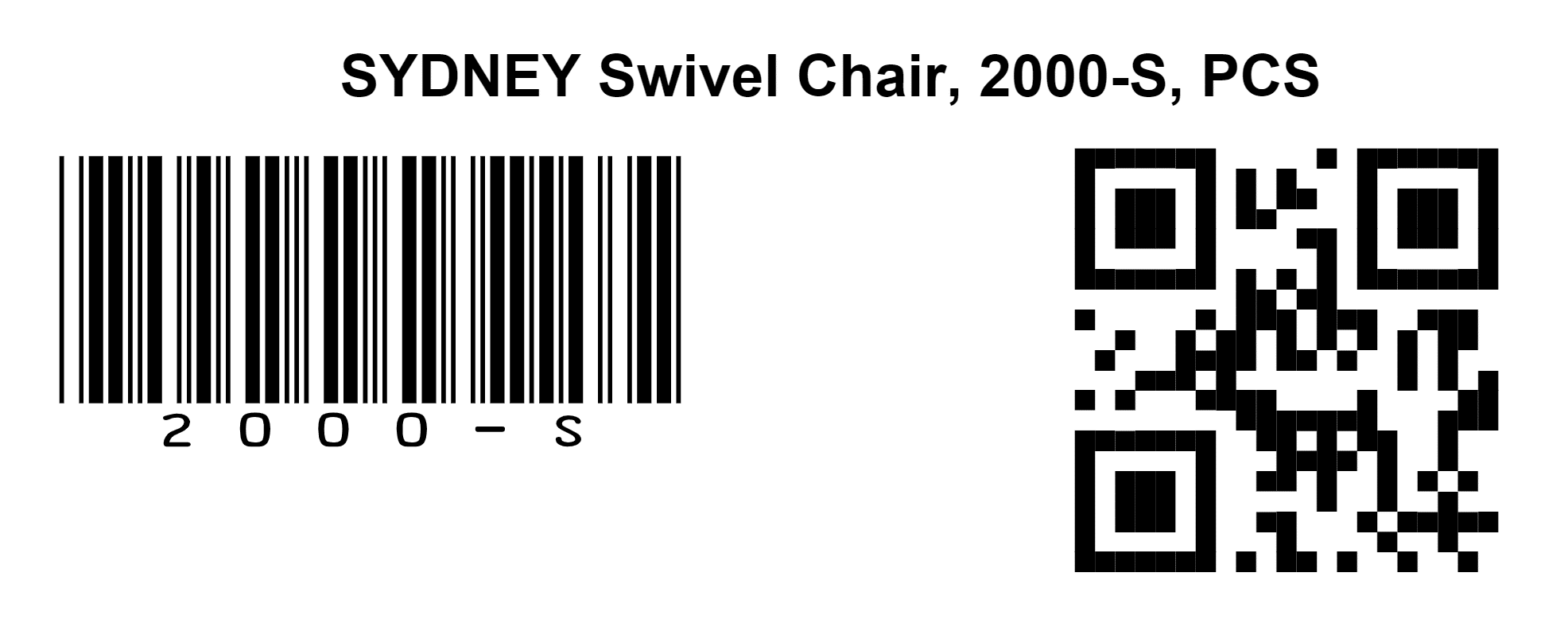
To start using the barcode printing and scanning features, the Print Label actions are now available across various pages in Business Central. The information populated on the labels changes depending on the page that it’s printed from. Below is an outline of the pages and values that are available by default.
- Item Card and List: Item No., Description, and GTIN.
- Item References and Item References List: Item No., Description, Unit of Measure, and Reference No.
- Lot No. Information Card and Lot No. Information List: Item No., Description, and Lot Number.
- Serial No. Information Card and Serial No. Information List: Item No., Description, and Serial Number.
Barcode scanning in Business Central
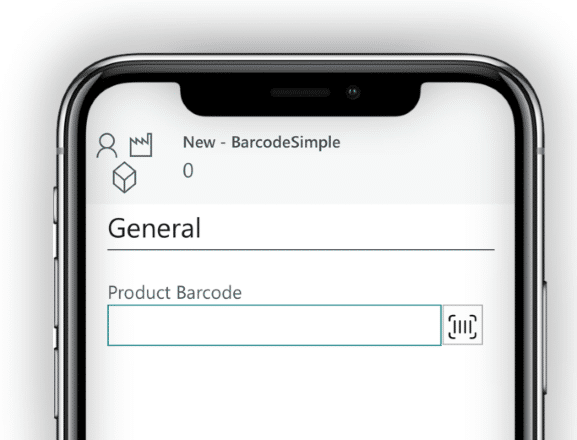
The Business Central mobile app for iOS and Android now supports label scanning using the device’s built-in camera. Additionally, when accessing Business Central on a mobile device, a new mobile-only button will appear. This button is represented by a square barcode icon and appears beside fields that support scanning. Users can tap this button, commonly located next to Item Reference or Item Tracking fields, to activate the device’s camera. For instance, scanning a barcode then automatically fills the relevant fields in the system, minimising data entry errors.
Applications
The barcode scanning feature is focused on Item Tracking and Item References, particularly on the below pages:
- Item Tracking Lines and Warehouse Item Tracking Lines: Populates fields Serial No., New Serial No., Lot No., New Lot No., Package No., and New Package No.
- Item Journal Lines: Populates Serial No., Lot No., and Package No.
- Sales and Purchase Lines: Populates Item Reference No.
The “Scan Multiple” action on the Item Tracking Lines page allows continuous scanning until all tracked quantities are scanned. Additionally, this new feature further improves efficiency among Business Central users.
Custom development
Microsoft has also introduced tools to extend and customise the barcode scanning feature through custom extensions, enabling partners to use standard events. Businesses can integrate barcode scanning seamlessly into both existing and new customisations. This flexibility allows the scanning process to be adapted to suit a wide range of business needs.
These new barcode printing and scanning features in Business Central provide businesses with a powerful tool to enhance their operations. By enabling easy data entry and accurate tracking, companies can achieve greater efficiency without the need for a full Warehouse Management System (WMS).